
1. Log in to WHM:
Go to: https://your-server-ip:2087 or https://hostname:2087
Enter your root or reseller credentials.
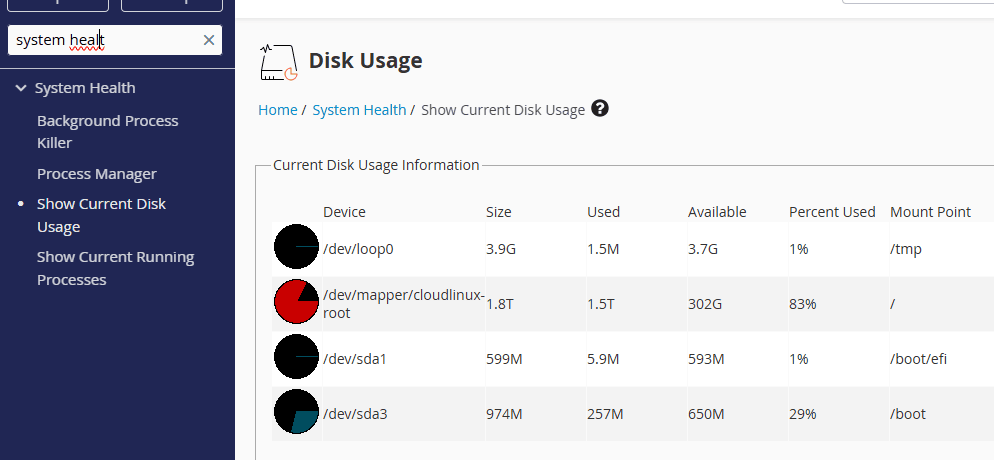
2. To check disk usage:
Go to Home » System Health » Show Current Disk Usage.
You’ll see a detailed breakdown of each mount point and how much space is used/free.
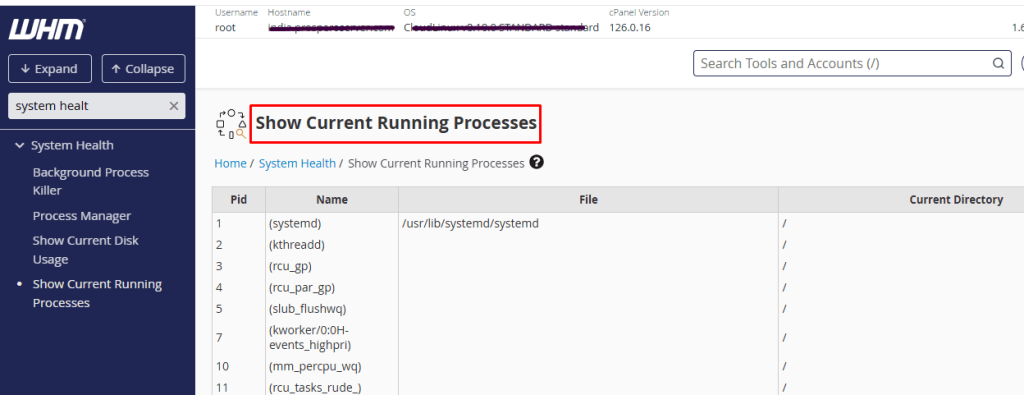
3. To view running processes:
Navigate to Home » System Health » Process Manager.
This displays all current processes, their CPU usage, and which user is running them. You can also terminate processes here if needed.
cPanel (for individual accounts):
1. Log in to the user’s cPanel.
2. For disk usage
Go to Files » Disk Usage.
It shows how much space is used in each folder and helps identify large files or directories.
cPanel does not provide direct access to process management (like WHM does), as it’s limited to the individual user’s permissions.
3. cPanel does not provide direct access to process management (like WHM does), as it’s limited to the individual user’s permissions.
